
Appearance
Schema Compare and Deploy
Schema Compare and Deploy compares two versions of a database schema and lists each difference. You choose the changes to deploy. VersionSQL then generates a script that makes the target match the source. The script opens in a new query window for your review. VersionSQL does not run the script.
INFO
Schema Compare and Deploy is available starting in VersionSQL 2.7. It replaces the deployment script generator from VersionSQL 2.0.
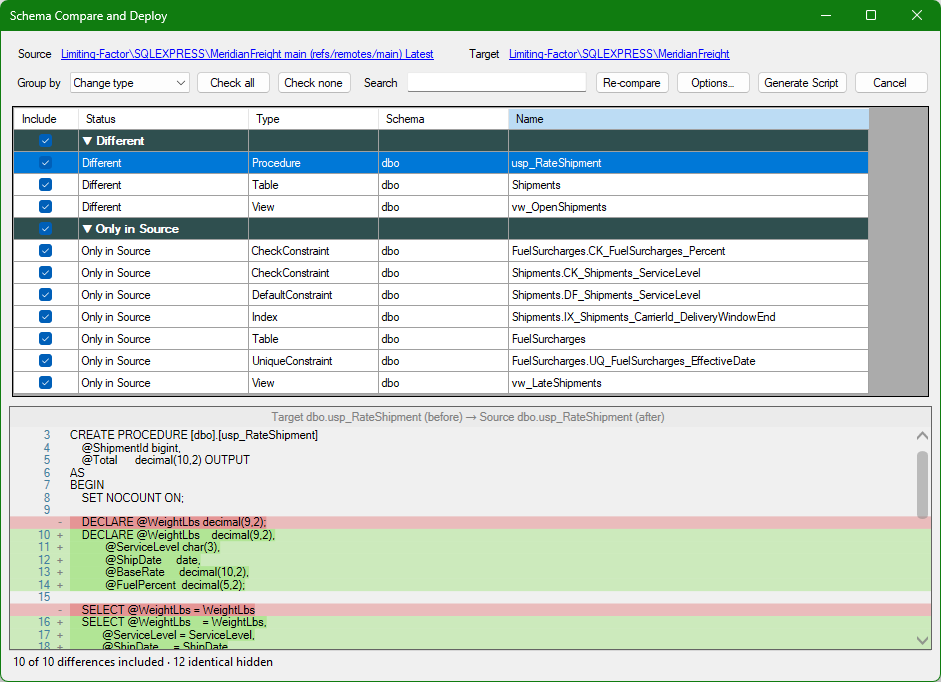
Open the window
Open Schema Compare and Deploy in one of these ways:
- In Object Explorer, right-click a database. Then select "VersionSQL → Schema Compare and Deploy".
- In the Scan for Uncommitted Changes window, click "Deploy Repo State to Database". The source is the latest revision in the repository, and the target is the scanned database. VersionSQL does not make a commit. This button is available for Git, Subversion, and TFVC connections. It is not available when you scan SQL Agent jobs.
- If you undo an object and other objects depend on it, the Undo dialog shows "Open Schema Compare at this revision". The source is the revision that you selected, and the target is the database. You can then pick the objects to revert together.
If you open the window from the scan or from Undo, the comparison starts immediately. To change the source or target, click the source or target link at the top of the window.
Choose the source and target
The script changes the target to match the source. Usually, the target is the database that you want to update.
- Under "Source", select one of these:
- "Database current state": a database on a server that is connected in Object Explorer.
- "Version control": a revision from the repository of a database that is connected to VersionSQL. Select the connection. If the connection uses Git, also select the branch. The revision is "Latest" by default. To use a different revision, click "Select" and pick it from the history.
- "Folder with database state": a folder of object scripts, for example a local copy of your repository.
- Under "Target", select one of the same three types.
- To change the comparison options before you compare, click "Options". See Options.
- Click "Compare".
Review the differences
The grid shows one row for each object that is different. Identical objects are hidden. The "Status" column tells you what the script does with an included row:
| Status | Result in the script |
|---|---|
| Only in Source | Creates the object in the target. |
| Different | Changes the object in the target to match. |
| Only in Target | Drops the object from the target. |
Rows with the status "Only in Source" or "Different" are included by default. Rows with the status "Only in Target" are not included by default, except for the types whose drop option is on. See Options.
Select a row to see the change in the lower pane. The pane compares the target definition (before) with the source definition (after). By default, the two definitions show side by side. To switch to a unified view, right-click the bar at the top of the pane. The screenshot above shows the unified view.
Use these controls to work through the list:
- "Include" column: include or exclude one row. The check box on a group row includes or excludes all the rows in that group.
- "Group by": group the rows by change type or by object type. To collapse or expand a group, click the group row.
- "Search": show only the rows whose name, schema, type, or status contains the text.
- "Check all" and "Check none": include or exclude all the rows that are visible.
The status bar shows how many differences are included and how many identical objects are hidden.
If VersionSQL cannot read an object, for example a script that uses syntax it cannot parse, it leaves that object out of the comparison. The status bar then shows a link, such as "2 objects were left out of the comparison". Click the link to see the list of objects. Review this list before you generate a script.
Options
Click "Options" in the Source and Target window or in the results window. The "Preset" list has these values:
- "Default": ignores whitespace, keyword casing, statement semicolons,
ANSI_NULLS,QUOTED_IDENTIFIER, and index options. - "Ignore Insignificant Differences": also ignores comments, file paths, file sizes, filegroup placement, and partition settings.
- "Custom": shows when your options do not match a preset.
Below the preset, you can turn on or turn off each option. To find an option by name, use "Filter".
The "Deployment" group has the "Drop ... not in source" options. Each option sets whether "Only in Target" rows of that type are included by default. By default, the options for constraints, DML triggers, extended properties, indexes, and statistics are on. The options for objects, permissions, and role members are off.
After the comparison, you can include or exclude each row in the grid. An included "Only in Target" row is always dropped. An excluded row is never dropped.
If you change options in the results window, the results are no longer current. Click "Re-compare now" to compare again. You cannot generate a script until the comparison is current.
Static data
If the source is a repository revision or a folder, and it contains static data scripts, the grid shows a "Static Data" row. This row is included by default. To preview the static data section of the script, select this row. To include or exclude static data, use the check box on this row or the "Include static data script" option.
The static data section runs after the schema changes. DELETE statements are disabled by default. To enable them, set the StaticDataEnableDeletes SQLCMD variable at the top of the script to 1.
Generate and run the script
- Include the changes that you want to deploy.
- Click "Generate Script". The window shows the progress. To stop, click "Cancel" next to the progress bar.
- If an object that you included needs another object, VersionSQL can change your selection. For example, VersionSQL keeps an object included when an included object depends on it. The "Review Adjusted Selection" window then lists each change and the reason. Click "OK" and review the grid. Then click "Generate Script" again.
- The script opens in a new query window in SQLCMD mode. The header shows the source, the target, and the time that the script was generated.
- Review the script.
- Run the script on the target.
The script has checks in place to prevent data loss. For example, if a change drops a column from a table that contains rows, the script stops with an error before it changes that table.
Azure SQL Database
Azure SQL Database cannot switch databases with USE. If some changes must run in the master database, the script has two sections. Each section starts with a marker comment:
-- VersionSQL section 1 of 2: run against the master database-- VersionSQL section 2 of 2: run against the database [YourDatabase]
A comment at the top of the script tells you how to run the two sections:
- Open a connection to the master database in SQLCMD mode. Run section 1, from the "section 1 of 2" line to the "section 2 of 2" line.
- Open a connection to the target database in SQLCMD mode. Run section 2, from the "section 2 of 2" line to the end of the file.
Run the sections on two separate connections. If no changes must run in the master database, the script has one section.
Requirements and limits
- Schema Compare and Deploy needs a paid VersionSQL license or an active trial. The free license for SQL Server Express does not include it. If you do not have a license, VersionSQL shows the trial or purchase prompt when you click "Compare" or "Generate Script".
- VersionSQL does not deploy changes directly. You review and run the generated script.
- Database-level options, such as collation, recovery model, and compatibility level, are not compared or scripted.
- SQL Agent jobs are not deployed.